
INTRODUCTION
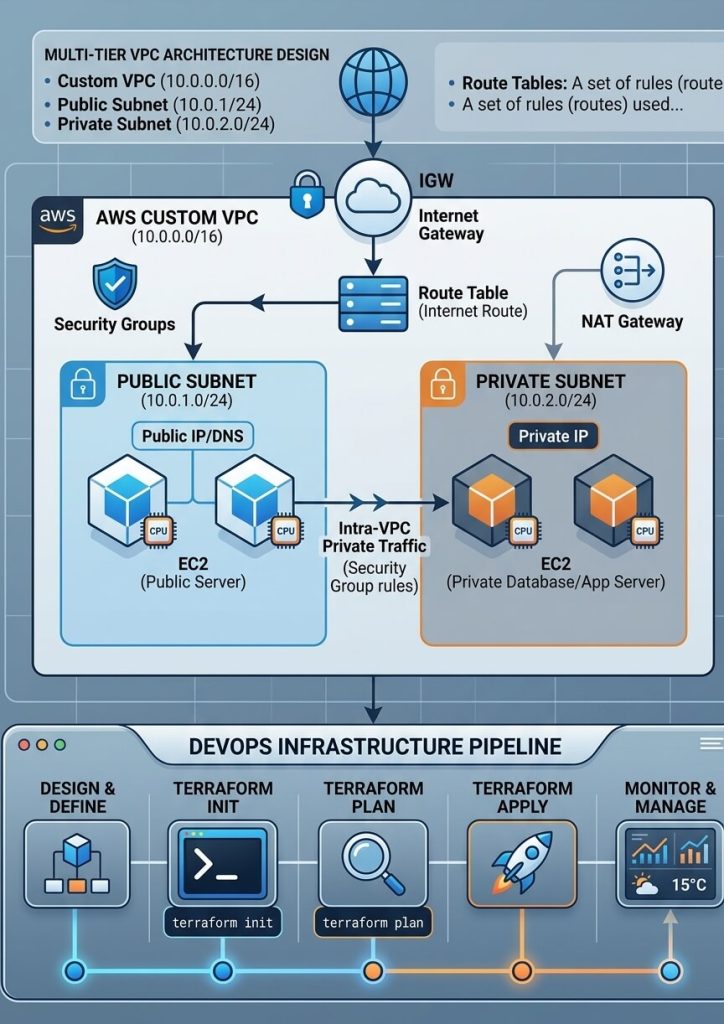
Building a robust cloud infrastructure requires more than just launching virtual servers—it demands placing those servers inside a securely architected network. Building upon our previous guide on AWS VPC Networking Fundamentals with Terraform, where we built a custom multi-tier network featuring both public and private subnets, we will now take the next logical step.
In this hands-on tutorial, we will deploy highly available Amazon EC2 instances across our custom VPC tiers using clean, modular Terraform code.
WHY SEPARATE PUBLIC AND PRIVATE INSTANCES?
Deploying compute resources across separate network tiers forms the foundation of cloud security:
- Public-Facing Access: Positioned within the Public Subnet, the public EC2 instance acts as a secure Bastion host or web server directly accessible from the internet.
- Isolated Backend Security: The private EC2 instance resides safely inside the Private Subnet, housing sensitive internal services and workloads away from direct internet exposure.
- Strict Traffic Control: Dedicated Security Groups act as stateful virtual firewalls to filter inbound and outbound traffic for each layer independently.
PREREQUISITES
Before applying the Terraform configuration, make sure you have the following ready:
- An Active AWS Account: Administrative access to create VPC, EC2, and Security Group resources.
- AWS CLI Configured: Set up on your local machine with valid credentials (
aws configure). - Terraform Installed: Version 1.0 or higher installed in your environment.
- Existing Custom VPC: The custom VPC and subnets created in our previous networking setup.
Architecture Overview & Security Groups
To ensure high availability and proper network isolation, our compute deployment will follow a structured design:
- Public EC2 Instance: Positioned within the Public Subnet to act as a public-facing web server or Bastion host.
- Private EC2 Instance: Positioned within the Private Subnet to host backend services or database workloads away from direct internet exposure.
- Security Groups: Acting as stateful virtual firewalls to strictly control inbound and outbound traffic for each instance tier.
Terraform Configuration for EC2 Deployment
We will define our security groups and instance configurations in Terraform. This ensures that SSH access is controlled and web traffic is properly routed.
Defining Security Groups
Create or update your main.tf file with the following security group definitions:
# Web Security Group for Public Subnet
resource "aws_security_group" "web_sg" {
  name        = "web-server-sg"
  description = "Allow inbound HTTP and SSH traffic"
  vpc_id      = aws_vpc.custom_vpc.id

  ingress {
    description = "Allow HTTP"
    from_port   = 80
    to_port     = 80
    protocol    = "tcp"
    cidr_blocks = ["0.0.0.0/0"]
  }

  ingress {
    description = "Allow SSH"
    from_port   = 22
    to_port     = 22
    protocol    = "tcp"
    cidr_blocks = ["0.0.0.0/0"] # Restrict to your IP in production
  }

  egress {
    from_port   = 0
    to_port     = 0
    protocol    ="-1"
    cidr_blocks = ["0.0.0.0/0"]
  }

  tags = {
    Name = "Web-SG"
  }
}
Launching EC2 Instances
Next, append the EC2 instance resources to target the specific subnets created in your network setup:
Public EC2 Instance
resource "aws_instance" "web_server" {
ami = "ami-04a81a99f5ec58529" # Amazon Linux 2 AMI (Update per region)
instance_type = "t2.micro"
subnet_id = aws_subnet.public_subnet.id
vpc_security_group_ids = [aws_security_group.web_sg.id]
tags = {
Name = "Public-Web-Server"
}
}Deploying the Infrastructure
Once your configuration files are updated, run the standard Terraform workflow in your terminal:
Validate and Plan Changes
terraform planApply Configuration
terraform applyConfirm the action by typing yes when prompted. Terraform will provision the security rules and launch your EC2 instances in their designated subnets.
Successful Infrastructure Deployment :
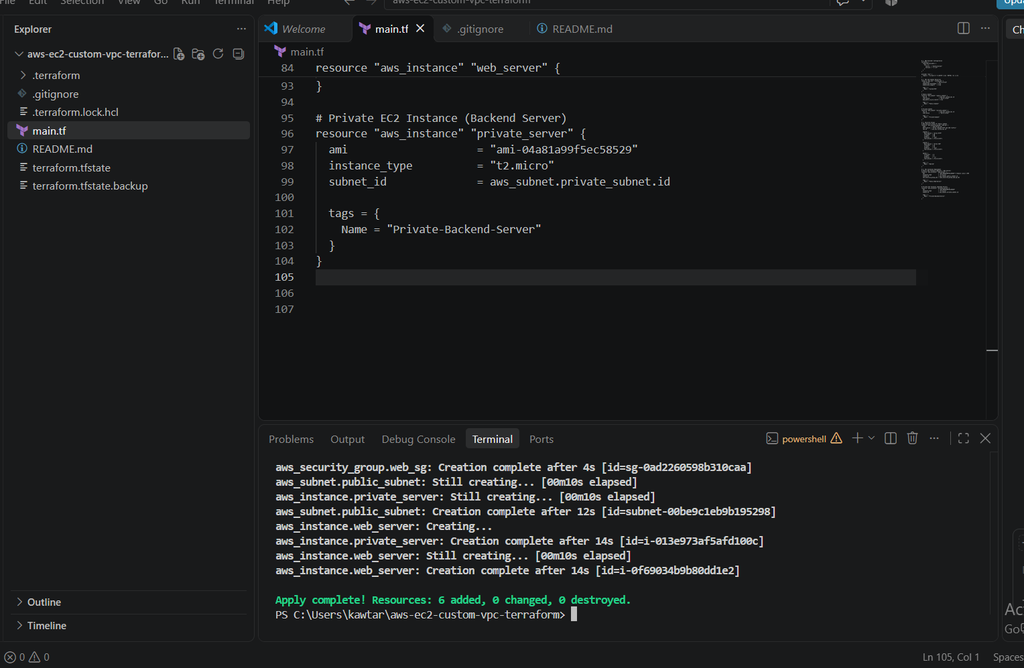
Once I executed terraform apply, Terraform went ahead and created all the resources as planned. As shown in the screenshot below, the process finished with 6 added, confirming that both EC2 instances, the custom VPC, and security groups were successfully created and ready in AWS.
Conclusion & Next Steps
By automating our AWS deployment with Terraform, we’ve built a secure, reproducible, and production-ready architecture. Splitting compute resources between public and private subnets strictly follows cloud security best practices—keeping internal systems isolated while maintaining high availability.
Get the Full Code
You can view, clone, and test the complete Terraform configuration files for this project on GitHub: 👉 View Project Repository on GitHub
For deeper configuration parameters, check out the official Amazon EC2 Documentation. In the next project, we’ll take this a step further by setting up Auto Scaling Groups and Application Load Balancers (ALB) to handle dynamic web traffic automatically.