
In cloud infrastructure, security is not an afterthought—it is the foundation. As organizations scale their infrastructure on Amazon Web Services (AWS), managing access control becomes critical. Without proper Identity and Access Management (IAM) controls, cloud environments become vulnerable to unauthorized access, data leaks, and severe security breaches.
In our previous guide on Mastering Terraform Variables and State Management, we covered how to structure code and isolate sensitive data. Today, we will take a deep dive into AWS IAM Security Best Practices and demonstrate how to manage Users, Roles, and Policies programmatically using Terraform.
What is AWS IAM?
AWS Identity and Access Management (IAM) is a web service that helps you securely control access to AWS resources. It allows you to specify who can access your resources (Authentication) and what actions they can perform on those resources (Authorization).
IAM is composed of four primary components:
- IAM Users: Persistent identities representing a person or service interacting with AWS.
- IAM Groups: Collections of users that allow you to manage permissions for multiple identities at once.
- IAM Roles: Temporary identities that can be assumed by users, applications, or AWS services (such as EC2 or Lambda).
- IAM Policies: JSON documents that explicitly define allowed or denied permissions.
Core Security Principle: The Principle of Least Privilege
The most critical best practice in cloud security is the Principle of Least Privilege (PoLP). This rule dictates that every user, service, or application should be granted only the minimum permissions necessary to perform its intended function—and nothing more.
Essential AWS IAM Security Best Practices:
- Lock Down the Root User: Never use the AWS root account for daily operational tasks. Enable Multi-Factor Authentication (MFA) immediately.
- Prefer Roles Over Access Keys: Avoid generating long-lived IAM Access Keys for applications. Use IAM Roles with temporary security credentials whenever possible.
- Use Managed Policies vs. Inline Policies: Attach managed policies to groups or roles rather than individual users for consistent governance.
- Enforce Strong Password Policies and MFA: Require MFA for all IAM users accessing the AWS Console.
- Regularly Audit and Rotate Credentials: Remove unused access keys and old IAM users periodically.
Provisioning AWS IAM Resources with Terraform
Managing IAM through the AWS Management Console manually can lead to human error and policy drift. By declaring IAM resources with Infrastructure as Code (IaC) using Terraform, you gain full version control and auditability.
Let us write a clean, production-ready Terraform configuration that creates a restricted IAM user, a custom IAM policy enforcing the Least Privilege principle, and attaches them together.
Step 1: Define the Provider (main.tf)
Create a main.tf file to configure your AWS provider:
terraform {
  required_version = ">= 1.0.0"
  required_providers {
    aws = {
      source  = "hashicorp/aws"
      version = "~> 5.0"
    }
  }
}

provider "aws" {
  region = var.aws_region
}
Step 2: Declare Variables (variables.tf)
Define your variables to keep your infrastructure code flexible and reusable:
variable "aws_region" {
type = string
default = "us-east-1"
description = "AWS region for deployment"
}
variable "developer_name" {
type = string
default = "dev-user-kawtar"
description = "Name for the restricted developer IAM user"
}Step 3: Create IAM User and Policy (iam.tf)
Now create an iam.tf file to define an IAM user and attach a custom policy that only allows read-only access to Amazon S3:
Security Note: We use aws_caller_identity to dynamically fetch account details instead of hardcoding your account ID, making the code 100% safe for public publishing.
Fetch current AWS account details dynamically
data "aws_caller_identity" "current" {}Create IAM User
resource "aws_iam_user" "dev_user" {
name = var.developer_name
tags = {
Environment = "Dev"
ManagedBy = "Terraform"
}
}
Define Restricted IAM Policy (S3 Read-Only)
resource "aws_iam_policy" "s3_read_only" {
name = "S3ReadOnlyRestrictedPolicy"
path = "/"
description = "Provides read-only access to specific S3 resources"
policy = jsonencode({
Version = "2012-10-17"
Statement = [
{
Action = [
"s3:Get*",
"s3:List*"
]
Effect = "Allow"
Resource = "*"
}
]
})
}Attach Policy to User
resource "aws_iam_policy_attachment" "dev_user_s3_attach" {
name = "dev-user-s3-attachment"
users = [aws_iam_user.dev_user.name]
policy_arn = aws_iam_policy.s3_read_only.arn
}
Step 4: Output Resource Info (outputs.tf)
Create an outputs.tf file to retrieve useful metadata after deployment:
output "iam_user_name" {
value = aws_iam_user.dev_user.name
description = "The name of the created IAM user"
}
output "iam_policy_arn" {
value = aws_iam_policy.s3_read_only.arn
description = "The ARN of the custom S3 Read-Only IAM Policy"
}Deploying Your IAM Configuration
To execute and apply this security configuration, run the standard Terraform workflow in your terminal:
Initialize Terraform:
terraform initValidate Configuration:
terraform validateReview Execution Plan:
terraform planApply Changes:
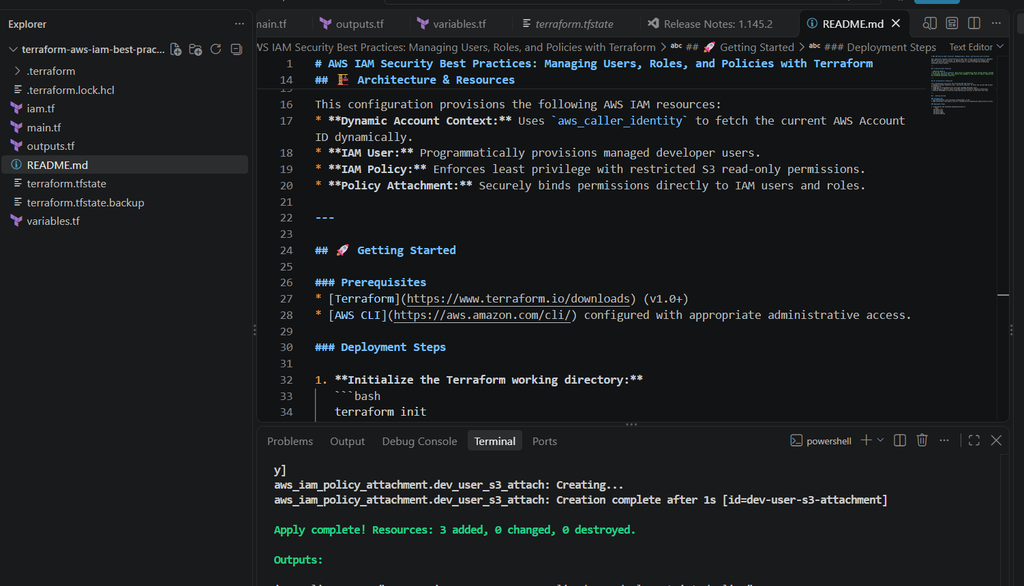
terraform applyAfter running terraform apply, you will see the successful execution details in your VS Code terminal as shown below. Terraform provisions all defined IAM resources—the developer user, restricted policy, and policy attachment—without any hardcoded account IDs.
Clean Up Resources (Optional):
terraform destroyConclusion & Final Thoughts
Managing IAM through the AWS Console is fine when you’re just starting out, but as your infrastructure grows, automating access controls with Terraform becomes a game-changer. By defining your users, custom policies, and roles as code, you ensure complete visibility, enforce the Principle of Least Privilege, and prevent unintended permissions drift.
Get the Full Code
Want to test this configuration yourself? You can find the complete, production-ready code structure used in this guide on my GitHub repository: Access the Full IAM Terraform Code on GitHub
In our next article, we will explore AWS Networking Fundamentals: Building a Custom VPC with Public and Private Subnets using Terraform.
Stay tuned to Kawtar Cloud Hub for more hands-on cloud engineering tutorials!